Using the workout builder
Build a custom structured workout, step by step, right on your phone — no external account needed.
-
1. Open "My workouts"
From the menu, choose My workouts, then tap + New workout.
-
2. Name it and add steps
Give the workout a name, then tap + Add step. Each step is either Steady (one target %FTP for a set duration) or Ramp (a target that changes smoothly from a start to an end %FTP).
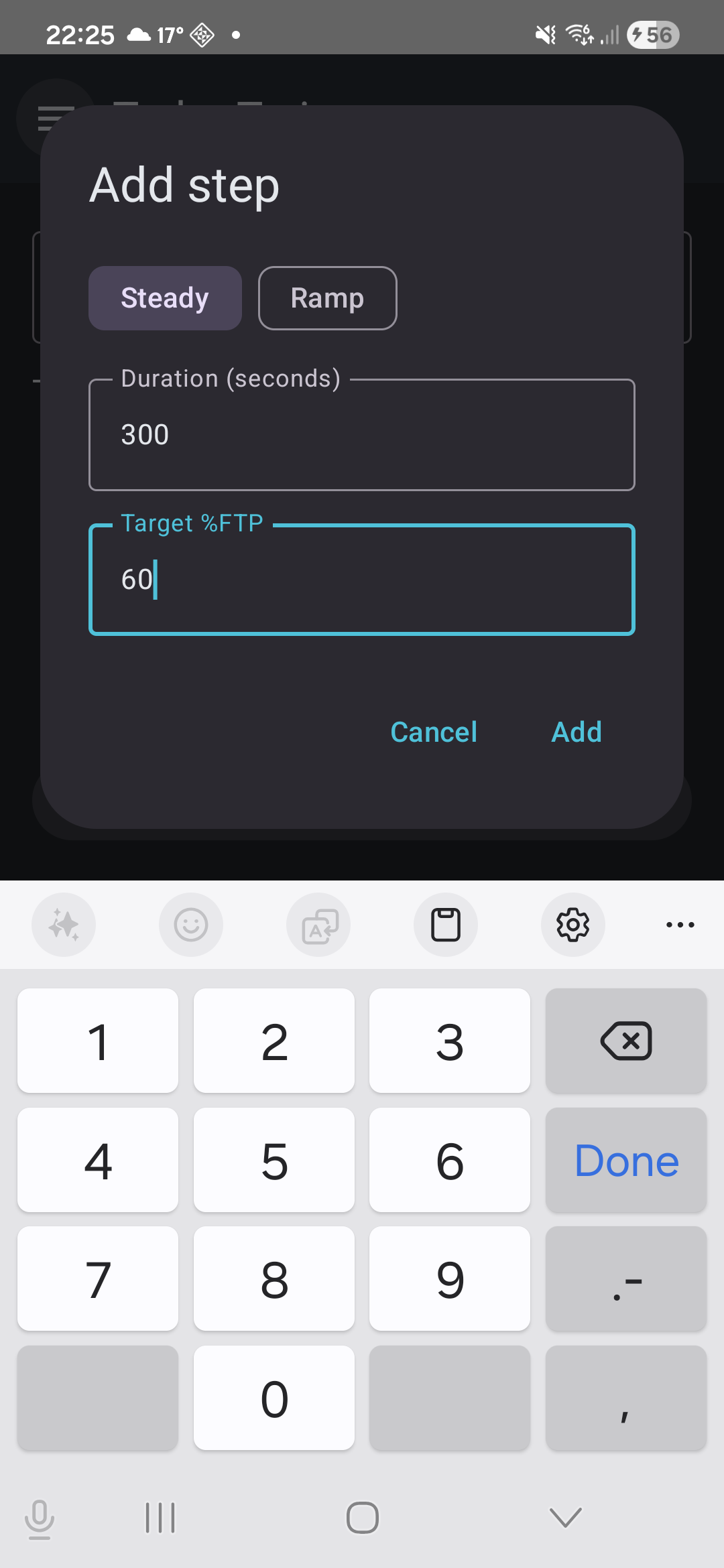
Adding a ramp step -
3. Check the shape
As you add steps, a profile chart shows the whole workout's %FTP-over-time shape — flat blocks for Steady steps, sloped for Ramps — so you can see the session you're building, not just a list of numbers.
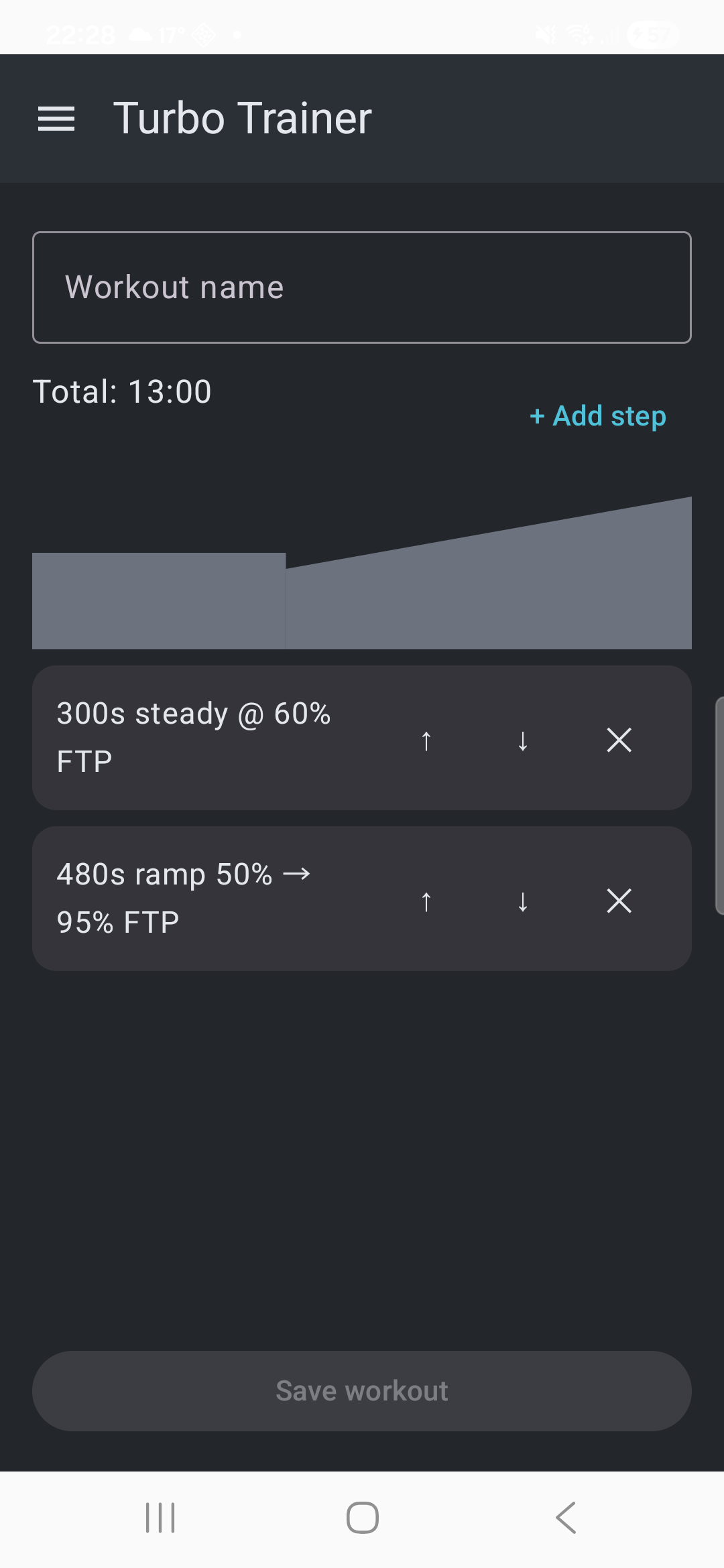
The profile chart updates as you add steps -
4. Reorder or remove steps
Use the up/down arrows on any step to move it, or the × to remove it. The running total duration at the top updates as you go.
-
5. Save and run it
Tap Save workout. It appears in My workouts, ready to run any time — Run fetches your current FTP and takes you straight into the live session.
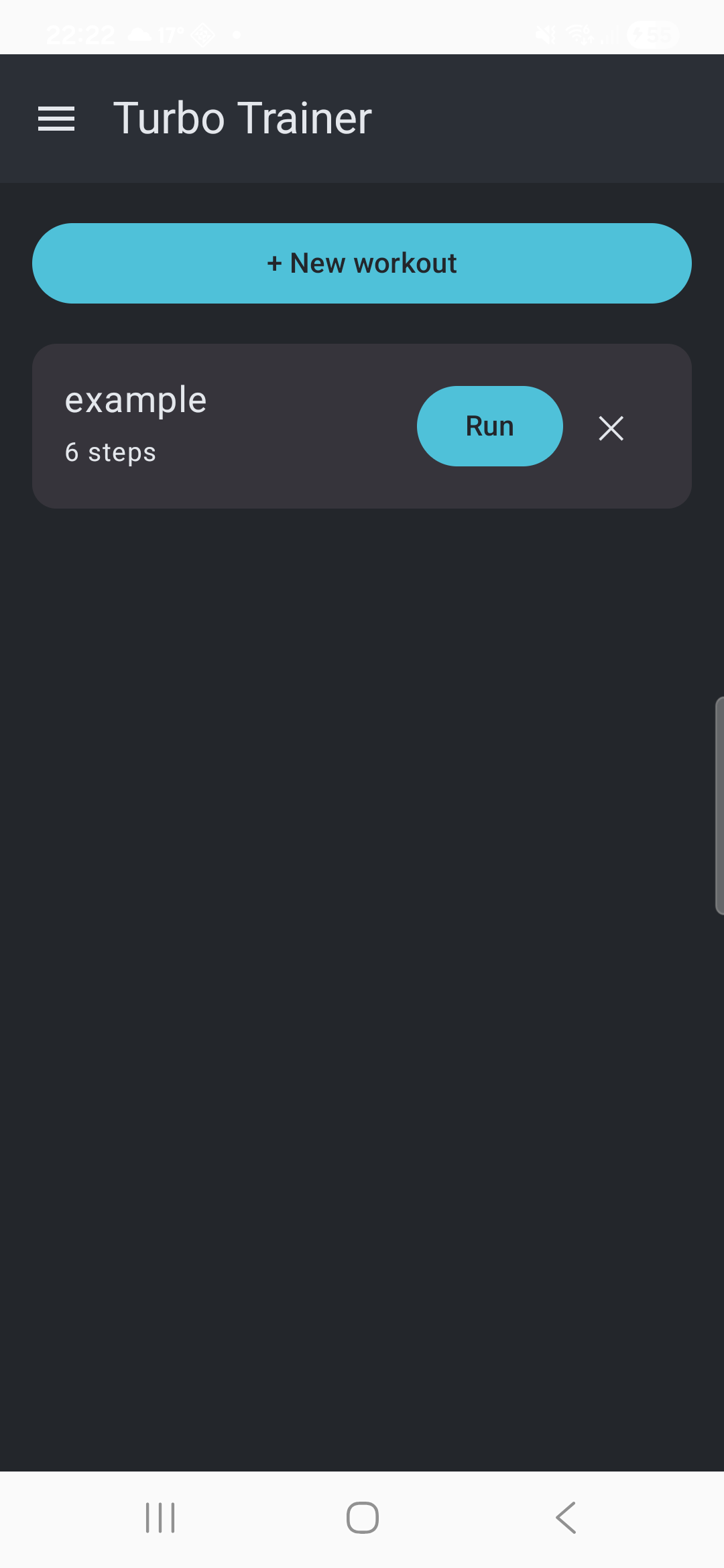
Your saved workouts, ready to run